Dictation that stays on my Mac
Apple silicon · macOS 15 or later
When built-in dictation fell short
The dictation built into macOS was not reliable enough for how I write. Then two small models came out that looked promising. Desert Ant Labs released Voz, which turns speech into text, and superwhisper released S1-mini, which cleans up transcripts. I wanted to try them together, so I built Omilia around them as a side project: a small productivity tool for writing notes, messages, and prompts by voice.
Two small models and one shortcut
Omilia turns speech into text in any app on my Mac. I press Option + Space, speak, and press it again. Omilia puts the text where I was typing. If the app cannot take the text, Omilia copies it so I can paste it.
Two models do the work on the Mac. Voz from Desert Ant Labs turns speech into text. S1-mini from superwhisper removes filler words and adds punctuation and capital letters. After setup downloads the models, Omilia works offline.
From first launch to saved transcript
The mark is a brushed-steel ring that folds into a figure eight and back. It opens the omilia.dev home page.
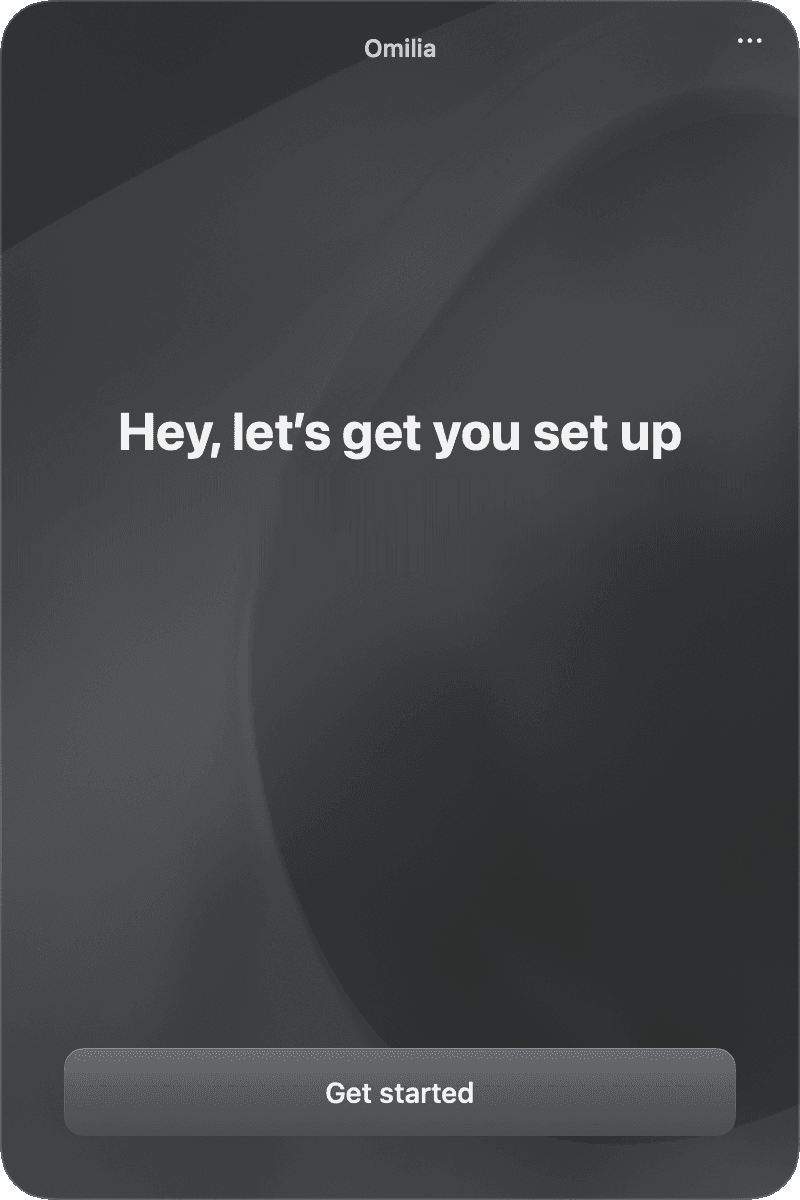
Getting set up
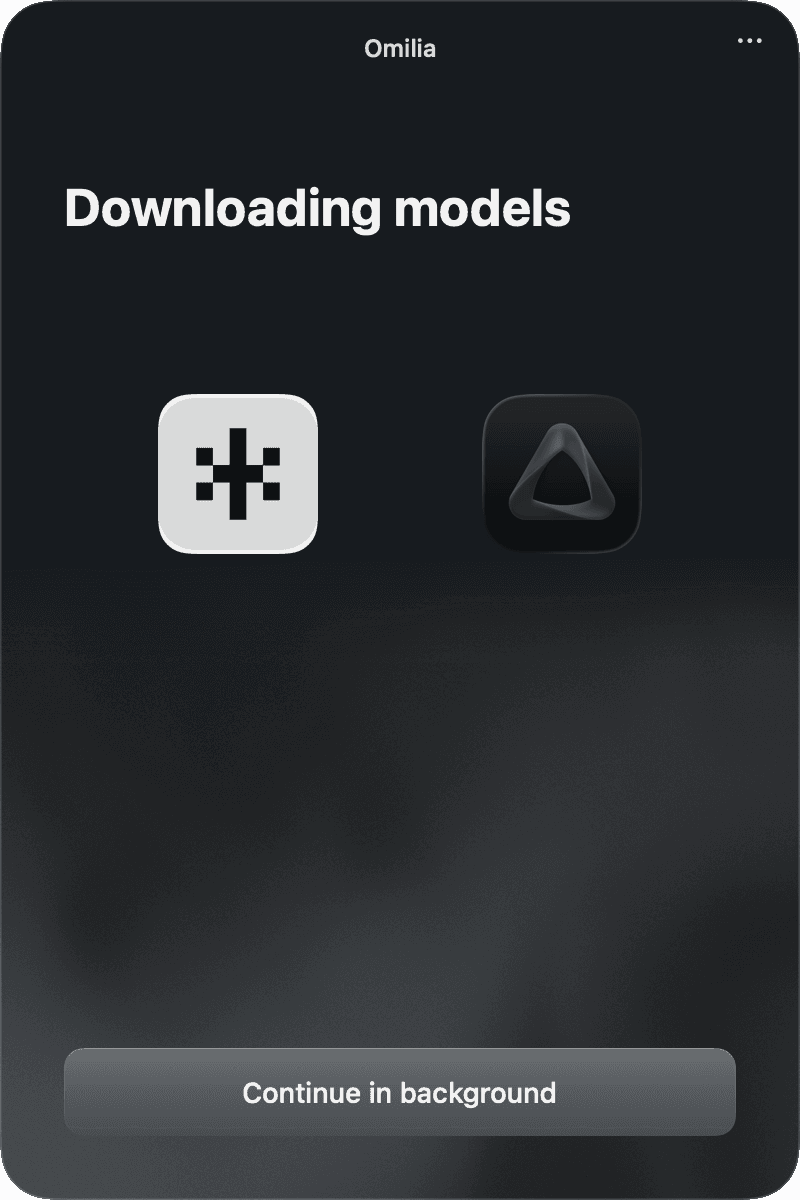
Setup asks for microphone and accessibility access, then downloads the models. On the download screen, a silver fill shows progress. Each model's icon gets brighter when it is ready.
Speaking into any app
The recorder is one small orb, so the app behind it stays in view. The orb moves with my voice. Stop appears when I hover over the orb or reach it with the keyboard.

Finding past transcripts
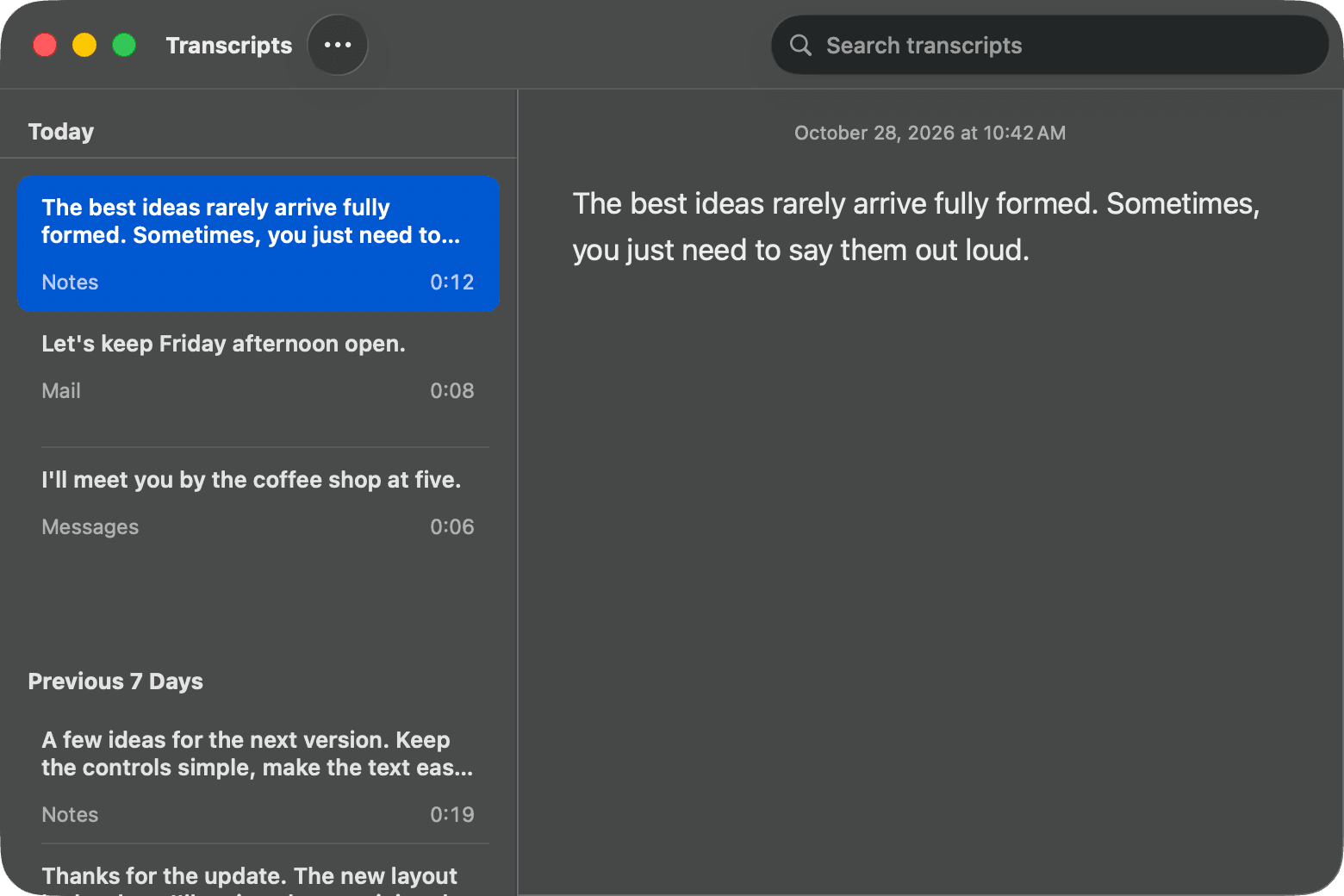
History is the main window. It keeps every transcript on the Mac, with the original text and the cleaned-up text. It lists them by day, with the app I spoke into and how long I spoke. The pane on the right shows the selected transcript. I can search, edit, and copy from there.
Seeing how much I dictate
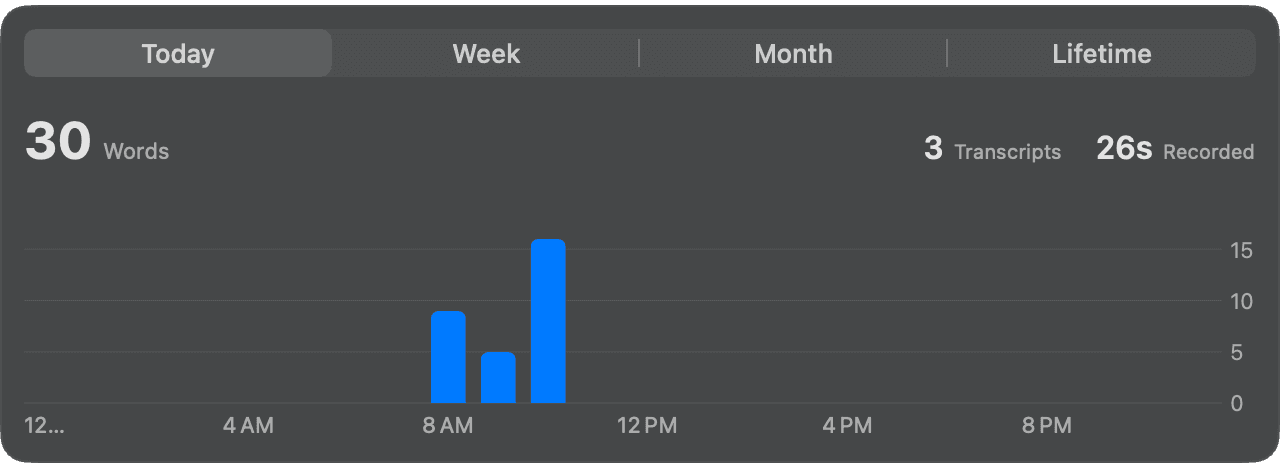
Activity is optional. It shows word counts, transcript counts, and recording time for today, this week, this month, or all time.